Display
Get an account in the AdsHero panel
Contact us and we’ll set up a shop account for you in the AdsHero panel. If you already have an account, log in here.
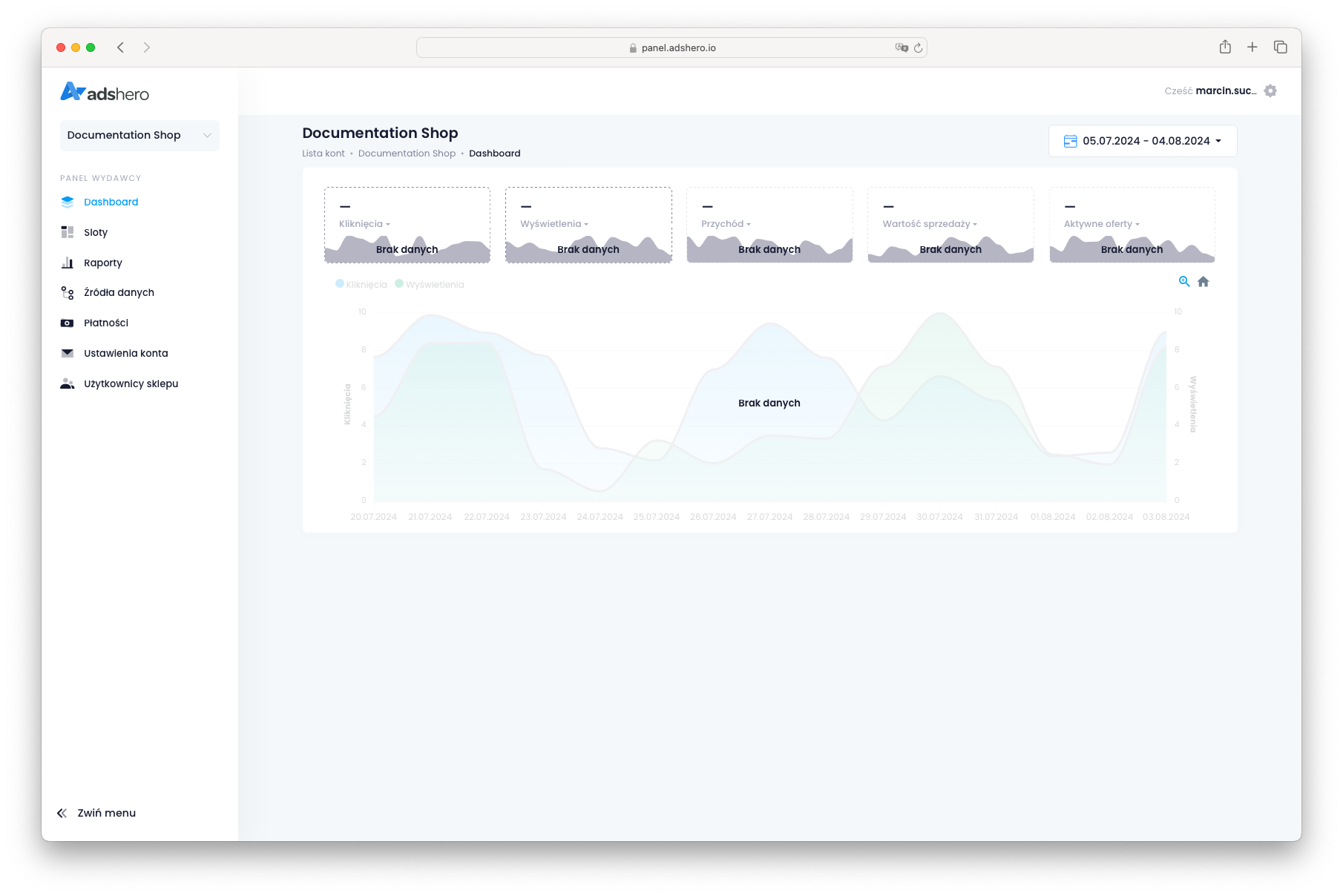
Create a test advertiser account
In normal usage, advertisers will create advertising campaigns, but for testing purposes, it is useful to prepare campaigns within the shop.
If you already have a test advertiser account, skip this step. Otherwise, follow the instructions to create an advertiser.
Set up ad units for display advertising
First, we create a new placement for display ads. Placements (groups of ad units) have a defined type: product placements can only contain product ad units and render sponsored offers. In the case of display type, we allow linking only those ad units that also have a display type and render display ads.
For display ads, it is necessary to prepare:
- A placement that groups ad units
- An ad format that describes what the display ad must include (image and its size, title, CTA, etc.)
- An ad unit, which is the physical space on the page
Placement
To create a new placement, go to the “slots” tab on the left side, then “placements”:
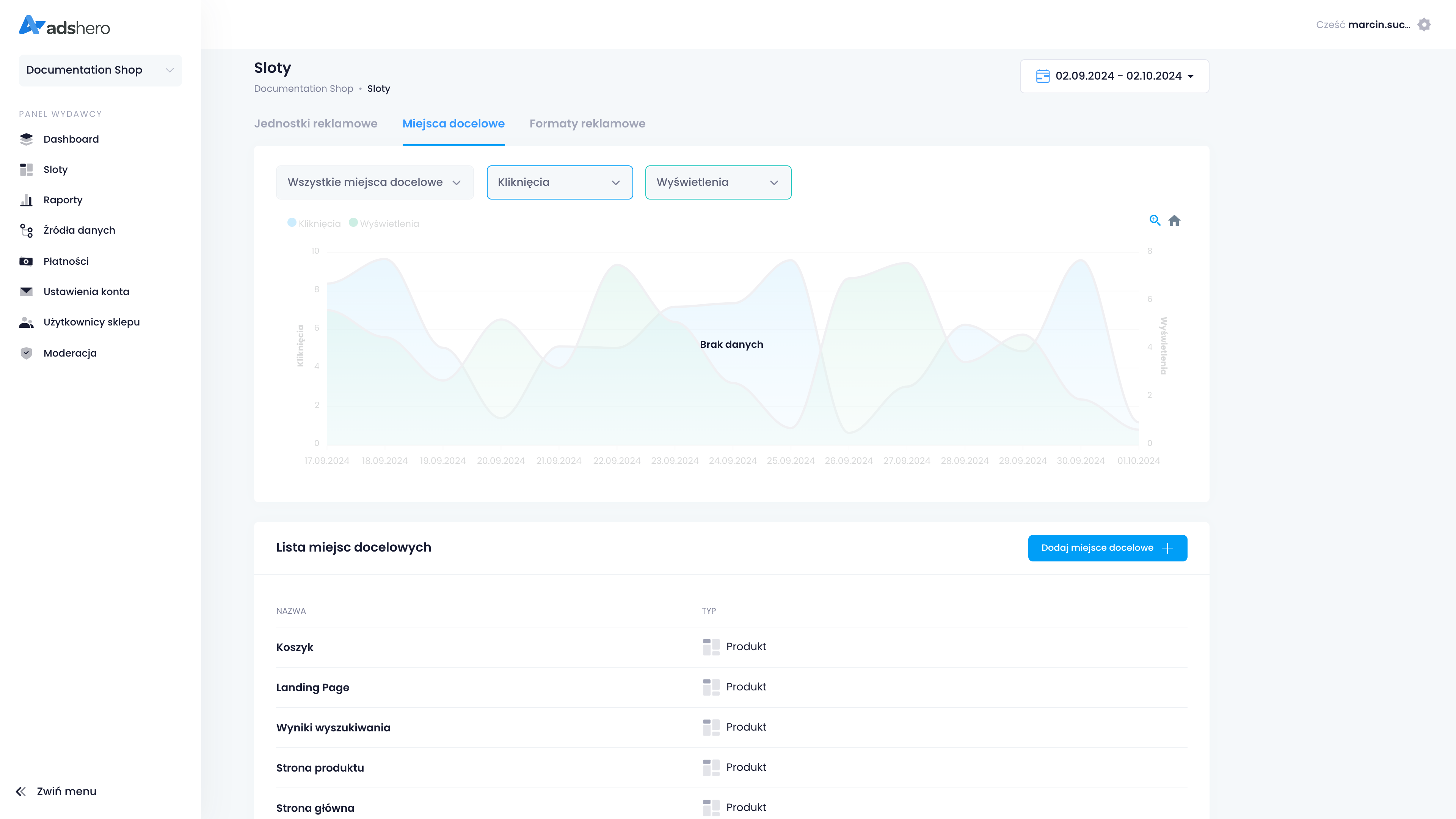
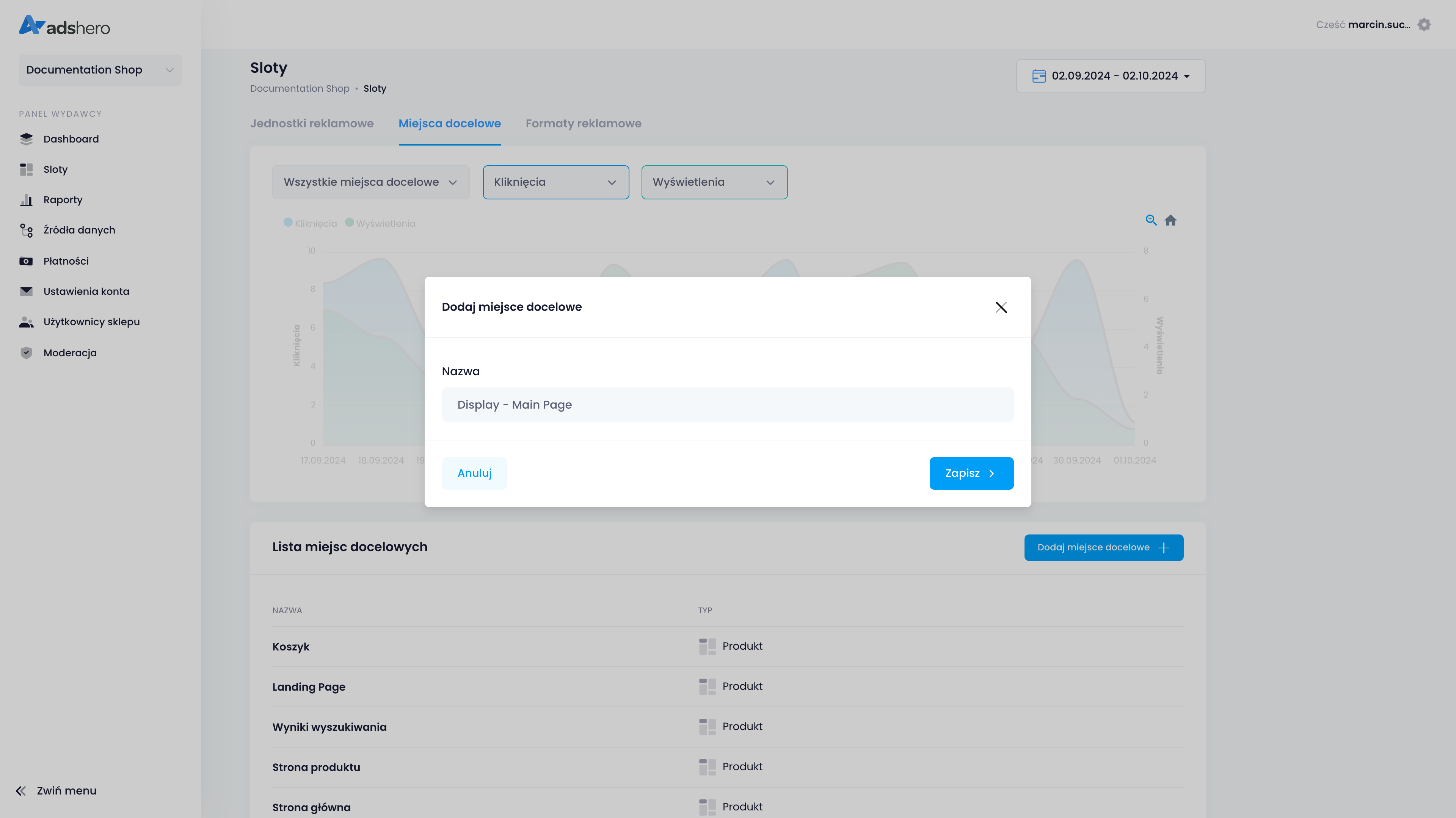
Next, click “Add Placement,” provide its name and save:
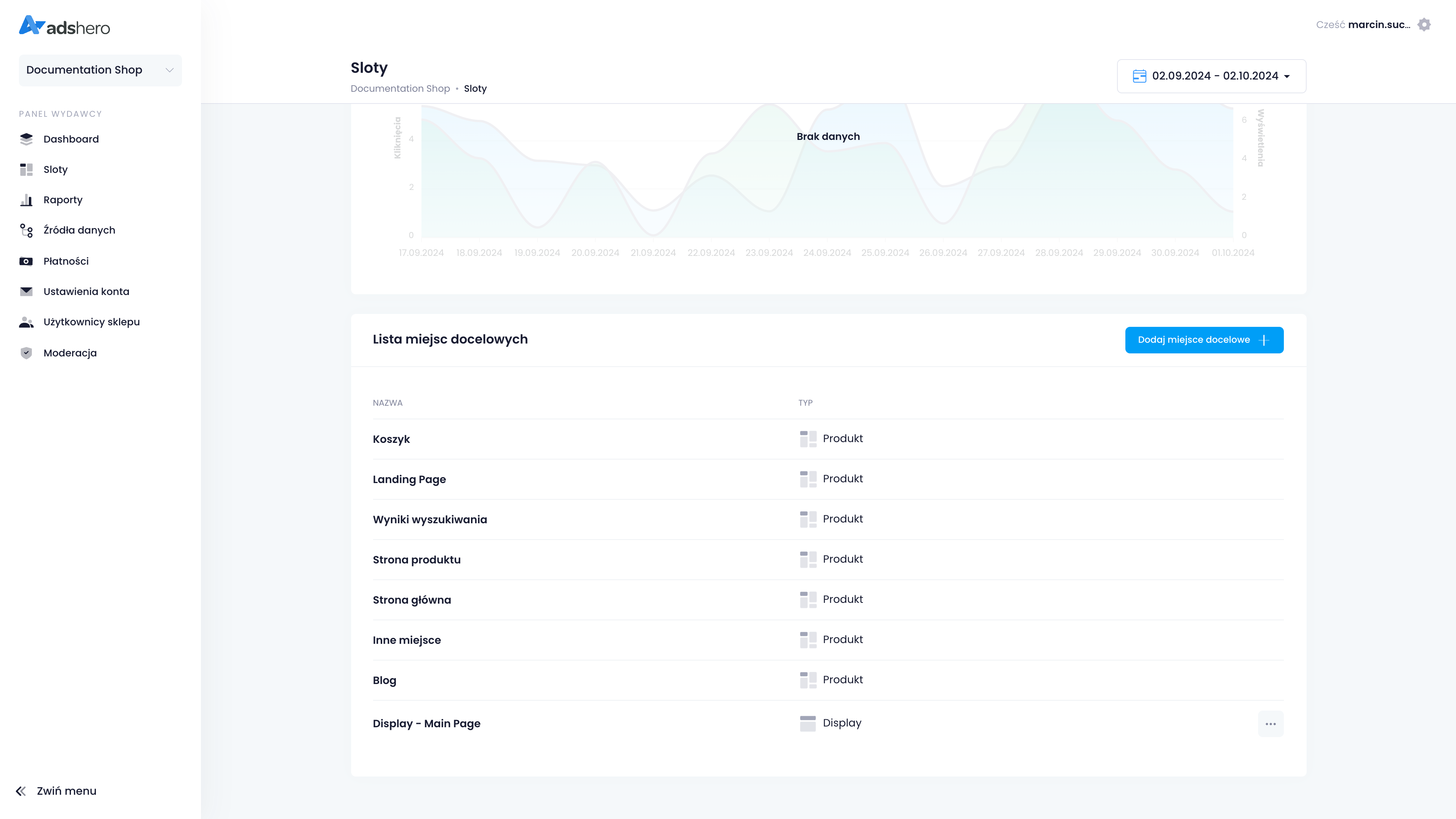
The newly created placement will be visible in the list:
Ad Format
To create a new format, go to “Ad Formats” in the “slots” tab:
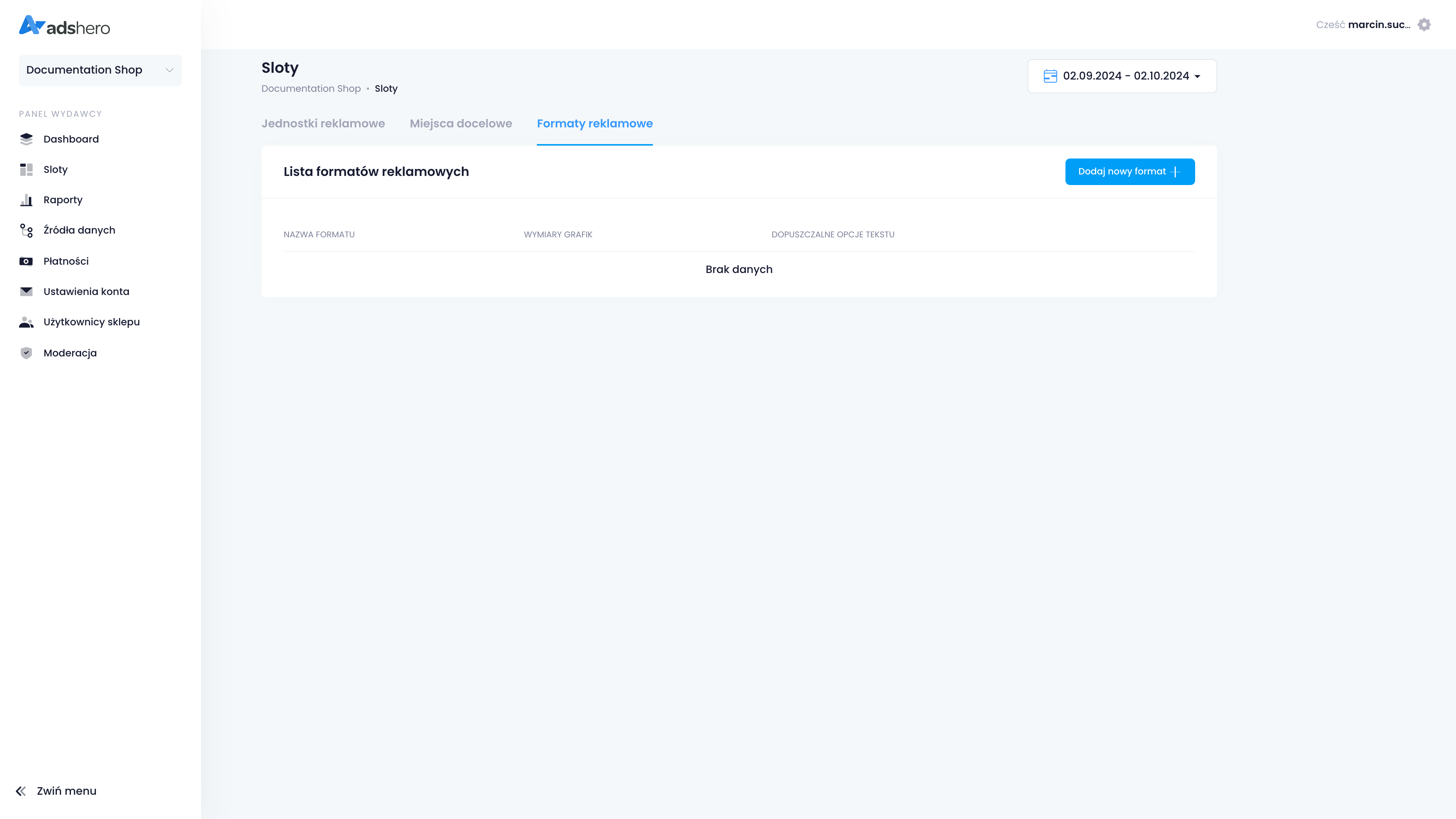
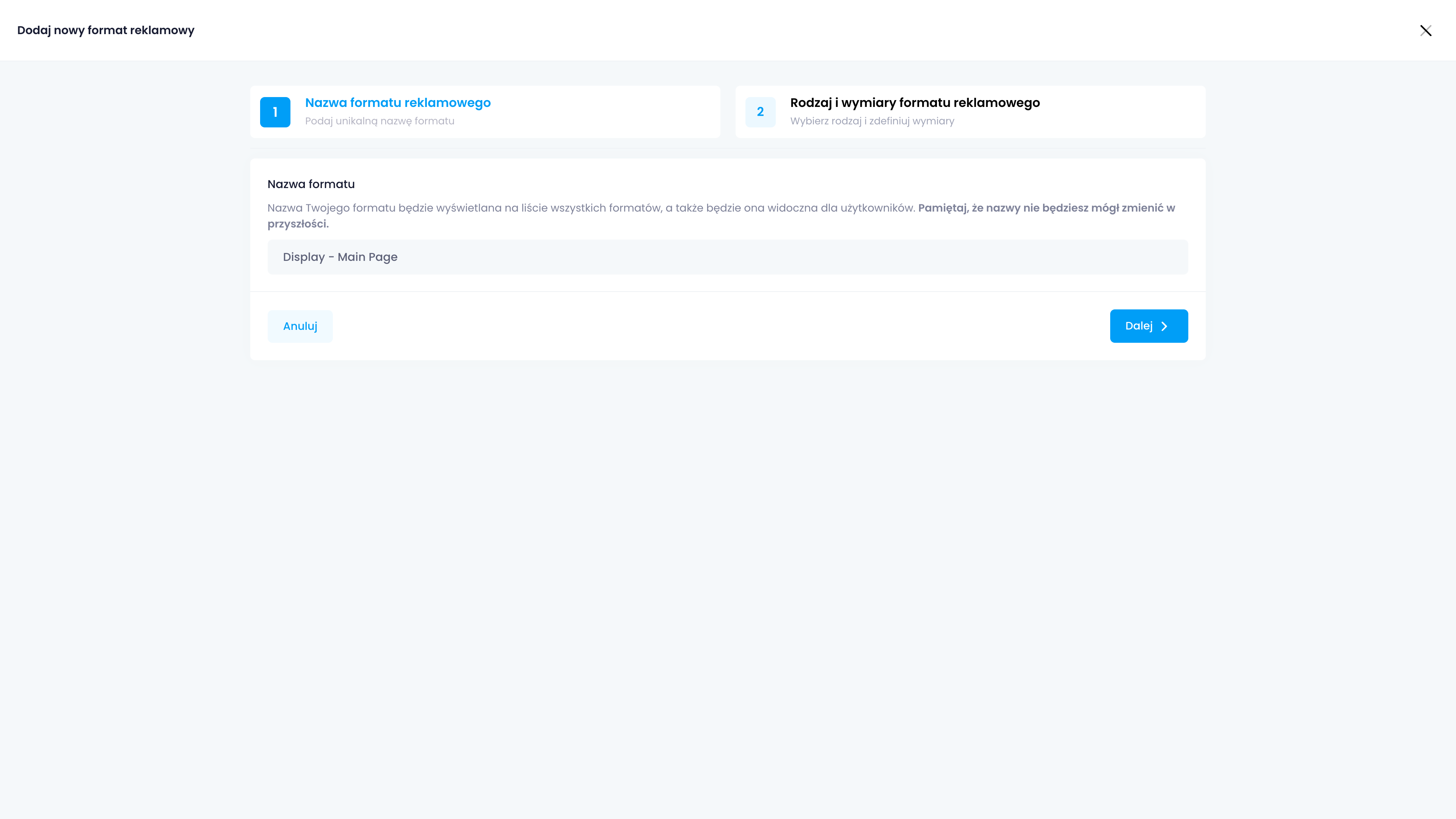
First, provide the format name. Names and other format parameters cannot be changed later; a new format must be created instead.
Next, configure the format. The screenshot below shows an example configuration — a detailed description of preparing formats can be found on the Ad Formats page. After configuring the format, click “Save”:

The newly created format will be visible in the list of formats:

Ad Unit
To create a new ad unit, go to the “slots” tab on the left side, then “ad units.”
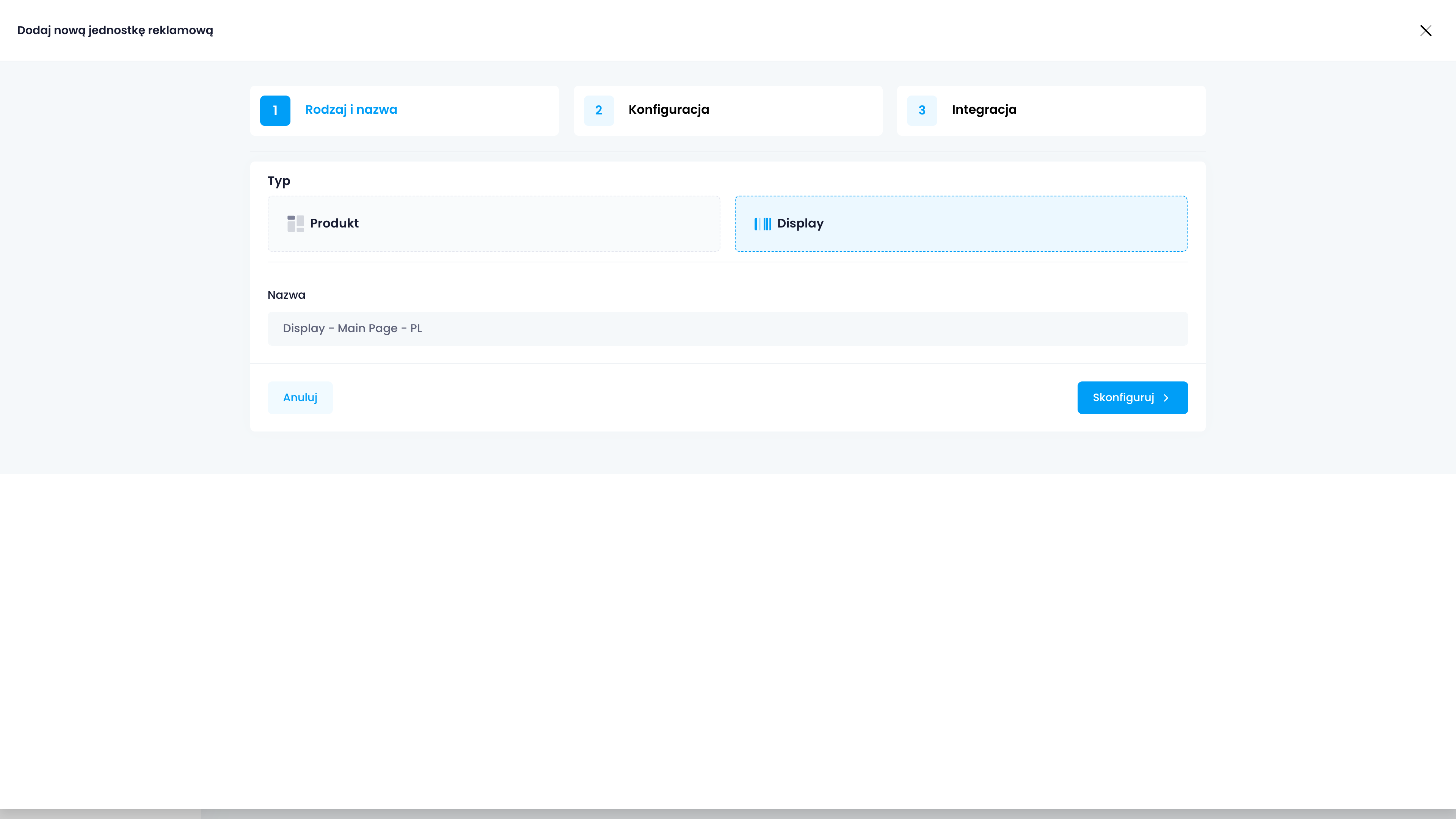
Next, select “Add new ad unit” and provide a name for the new unit. The key is to select the type as “Display.”
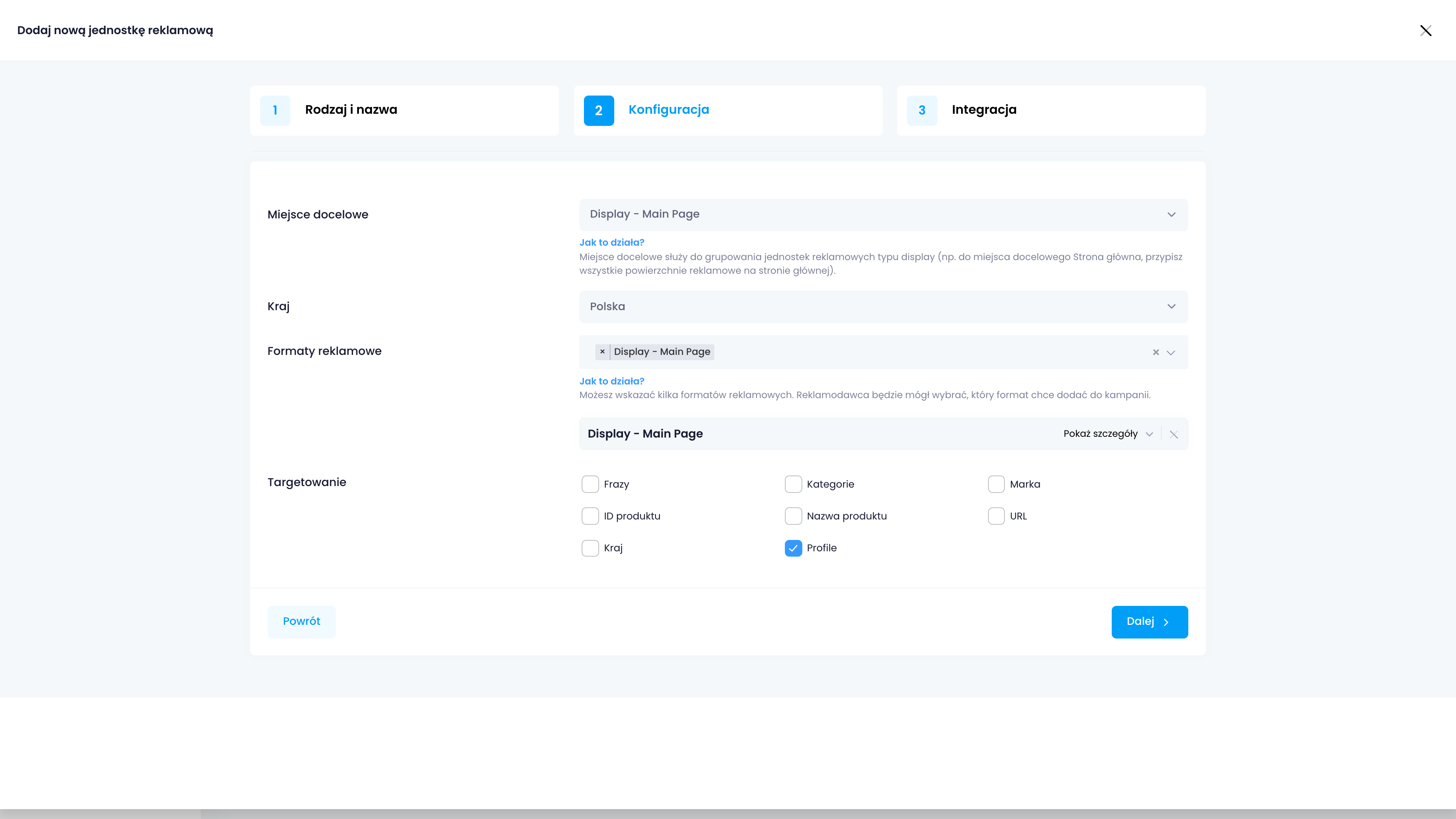
In the second step, choose the placement — here, select the newly created one. Additionally, you must select the ad formats that can be rendered in this placement. In the example, we choose the one we created in the previous step.
Additionally, you can select targeting options available in this slot. This means that the advertiser, during the campaign configuration, will be able to target it based on given parameters, e.g., user profiles or categories. It also means that during the rendering process, this information needs to be passed to the rendering endpoint.
After clicking “Save,” the new ad unit is visible in the list:
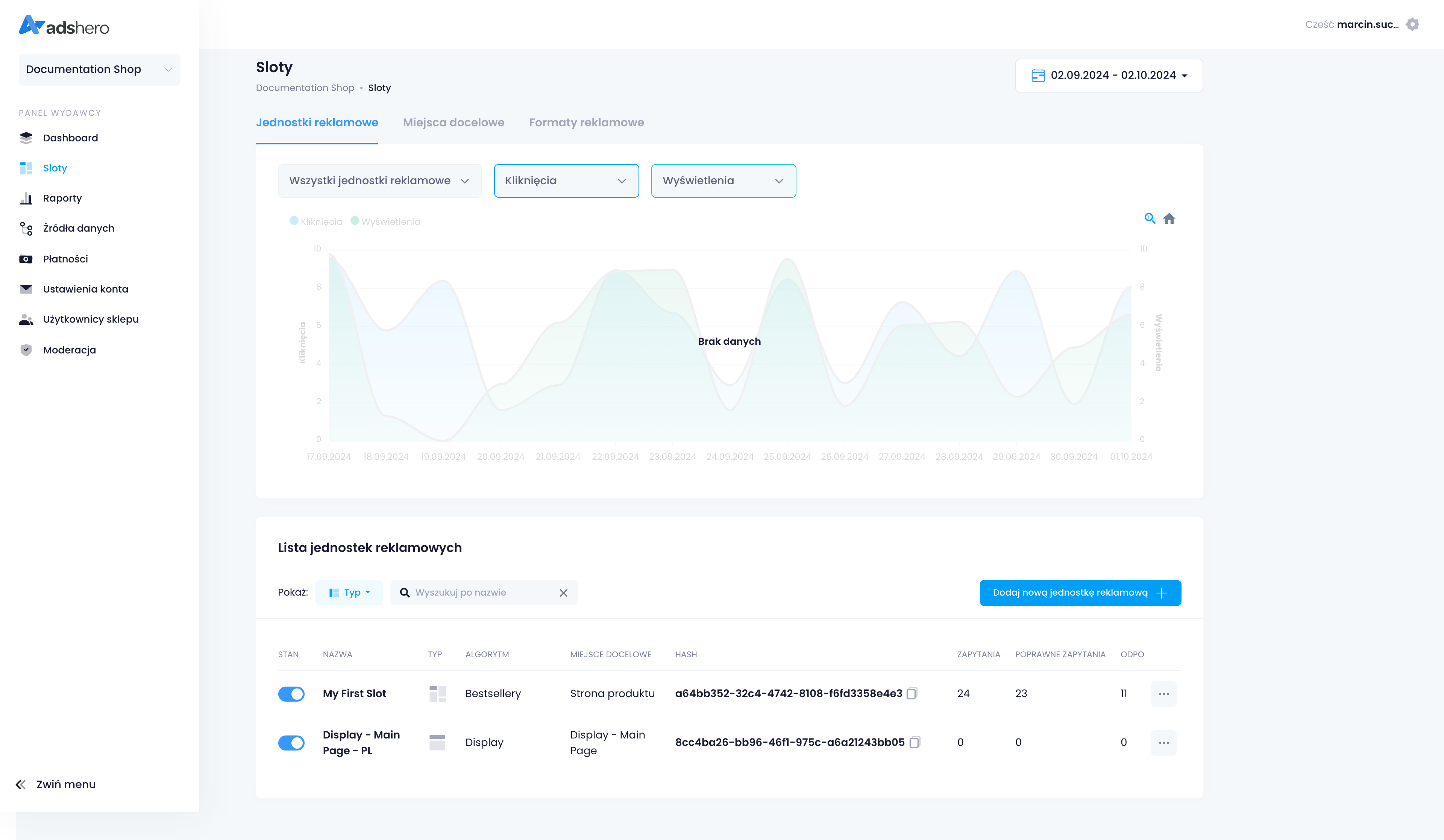
Create a test campaign
On the campaign list on the dashboard, click “Add Campaign”:
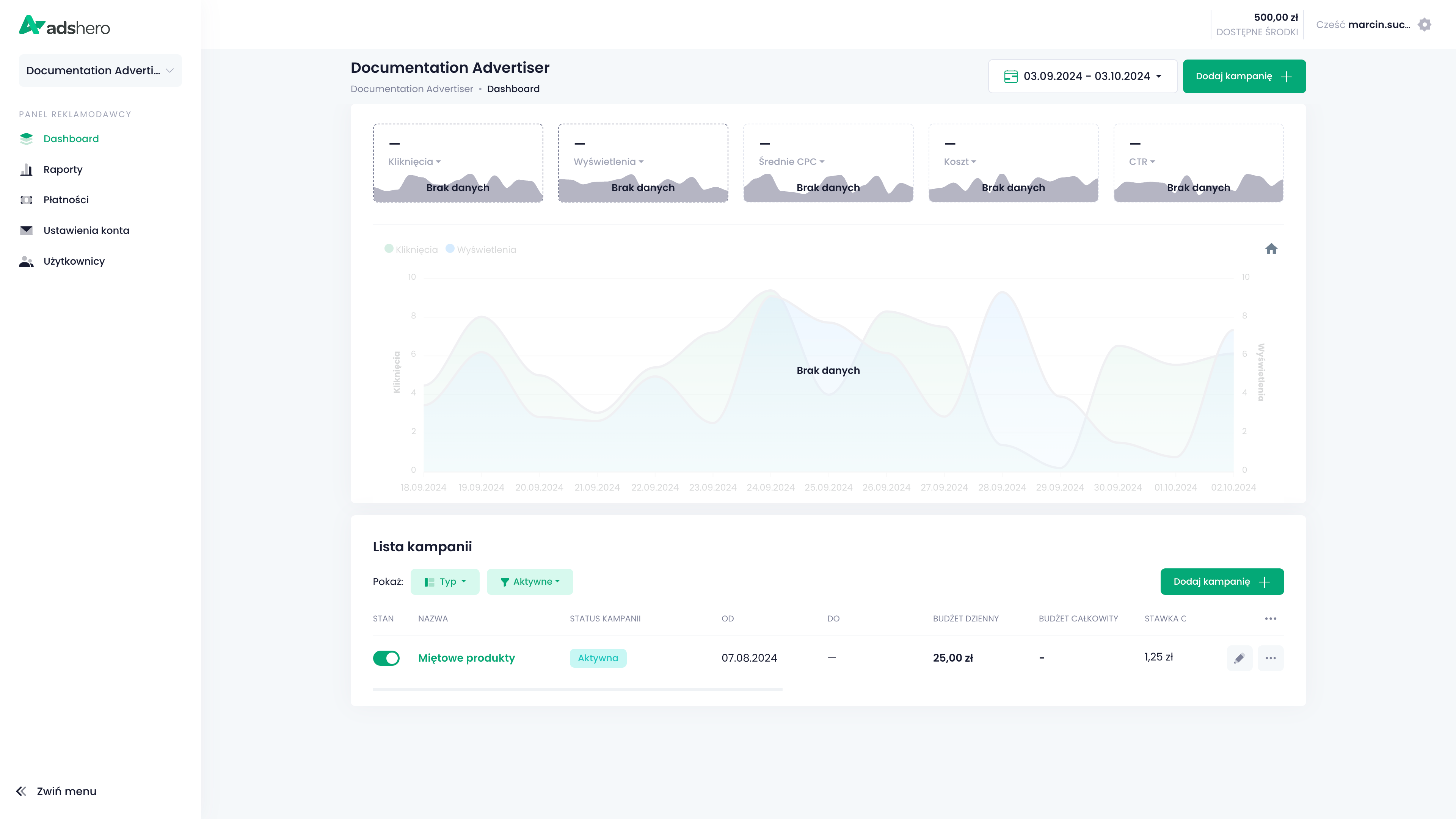
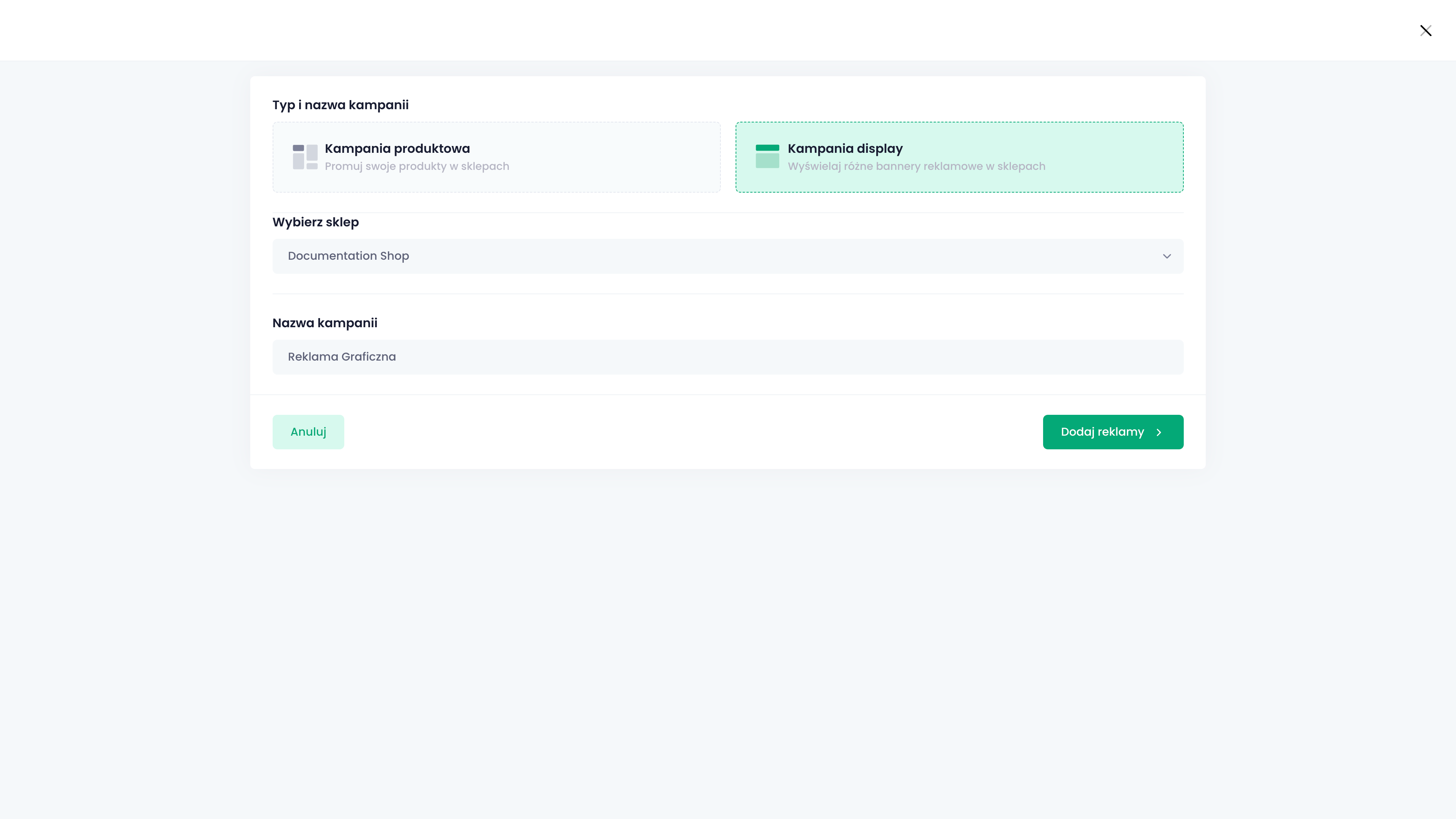
In the first step, select the campaign type as “Display” (display ad) and choose the shop in which it will be rendered. It will not render immediately — due to the graphics, which the shop has no control over, it goes through moderation.
Give the campaign a name and proceed to the next step by clicking “Add ads”:
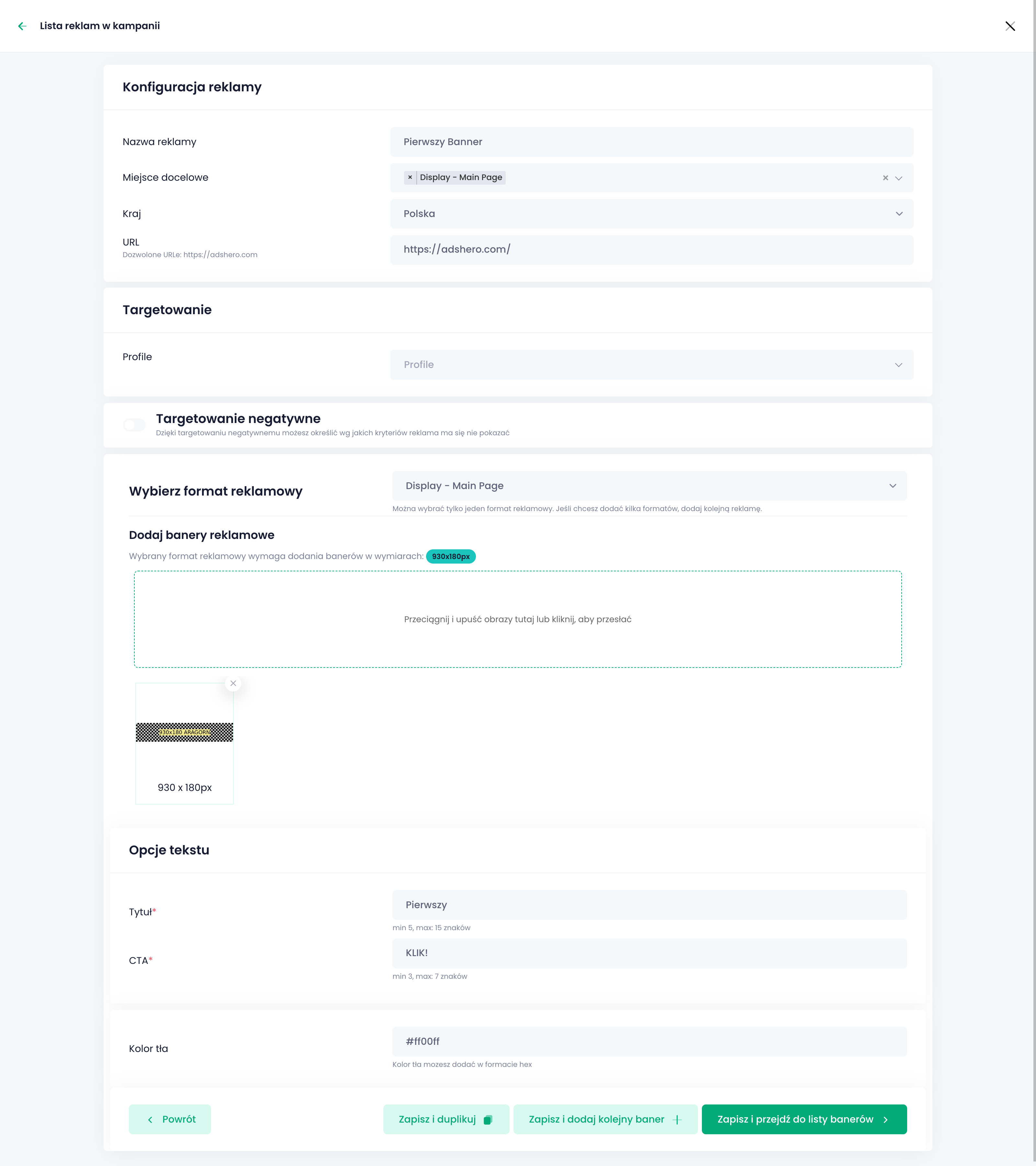
Below is the individual ad (banner) editing screen. Each Display campaign consists of one or more ads. We will go through each section now.
Ad Configuration
First, provide the ad name and placement. The name allows you to identify an individual ad in the campaign on the list — it should well reflect the content and intent of the ad (e.g., targeting).
The country additionally cuts ad units within the placement to those present in that location. This allows you to create one campaign with localized content for many markets.
The URL is the address to which the user will be redirected after clicking the ad.
Targeting and Negative Targeting
Targeting allows precise selection of the group of users and contexts for which the ad will be rendered. In the example, we do not configure precise targeting — detailed configuration and best practices are described on a separate page.
Creative
Creative is the presentation of the ad: it can be simply described as “what the user sees.” In the panel, creative elements include the entire configuration from “Choose ad format” down.
The first step in creating a creative is choosing the ad format. The format describes “what” must be in the ad, so it naturally became the first step.
The second element is images/graphics.
You need to upload those required by the format.
We accept images in PNG, JPG, and WEBP formats.
Next are “Text Options” and “Background Color.” These are additional creative elements that can be clickable (depends on the implementation of rendering the format). Background color is simply the background for the creative.
After configuring the ad, click “Save and go to the banner list”:
The screen below shows the list of ads in the display campaign. You can edit existing ones, duplicate them (to create similar ones using a template), and add new ones. For this instruction, we will leave only one ad and click “Campaign Details”:
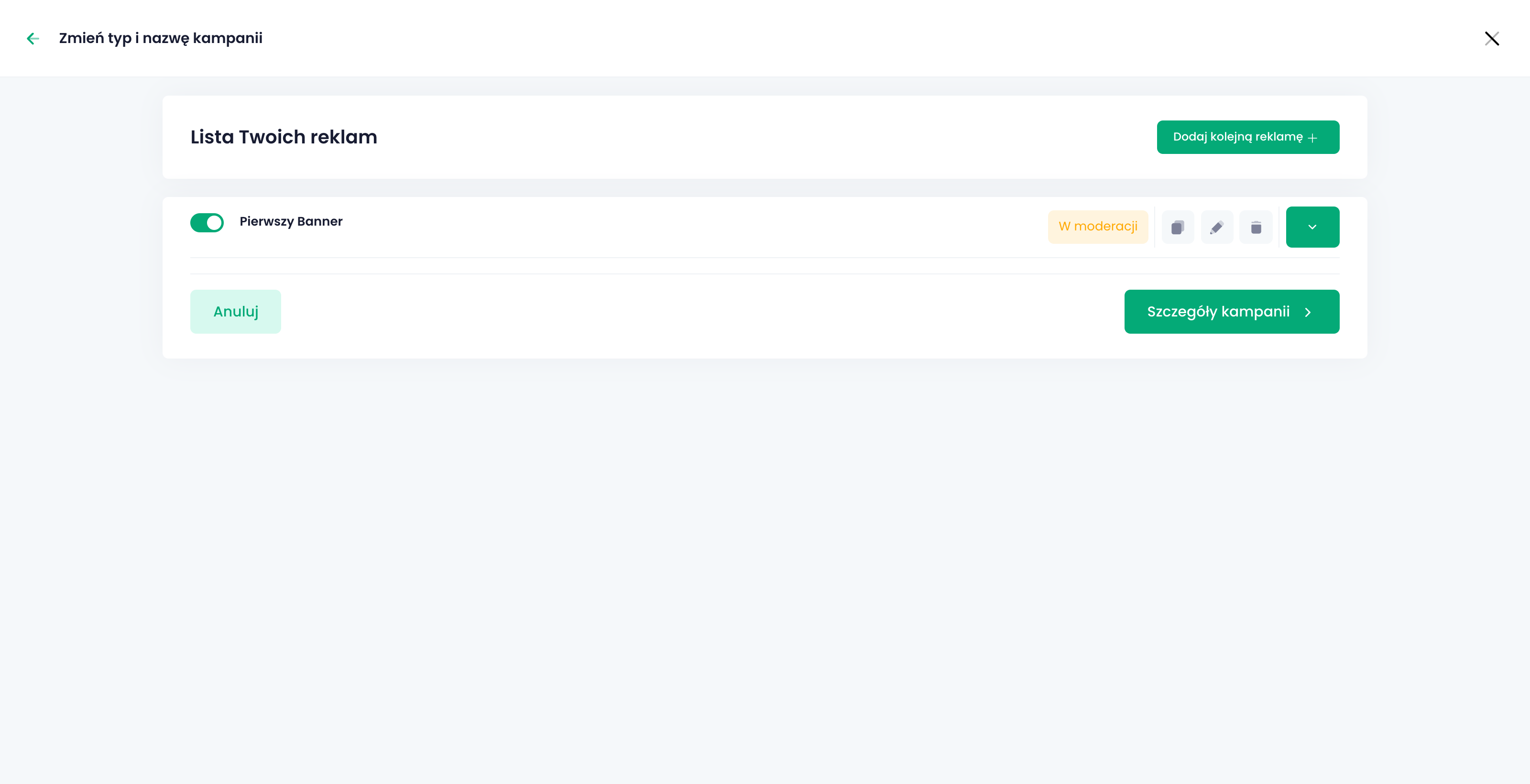
“Campaign Details” is the last screen in Display campaign configuration. Here we set the campaign duration, CPM (cost per 1000 impressions), and budget.
Expanding “More options” allows for additional configuration of capping and products for attribution. Capping sets a limit on how many times an individual user can see an individual ad per day. Products for attribution is a list of SKUs, purchases of which will be attributed to the ad campaign if the user saw the ad before the purchase. This allows measuring the effectiveness of the ad campaign.
After finishing the configuration, click “Create Campaign”:

The new campaign is visible on the list of all campaigns and has the status “In Moderation.” This means that the publisher must first accept the ad before rendering begins.

Ad Moderation
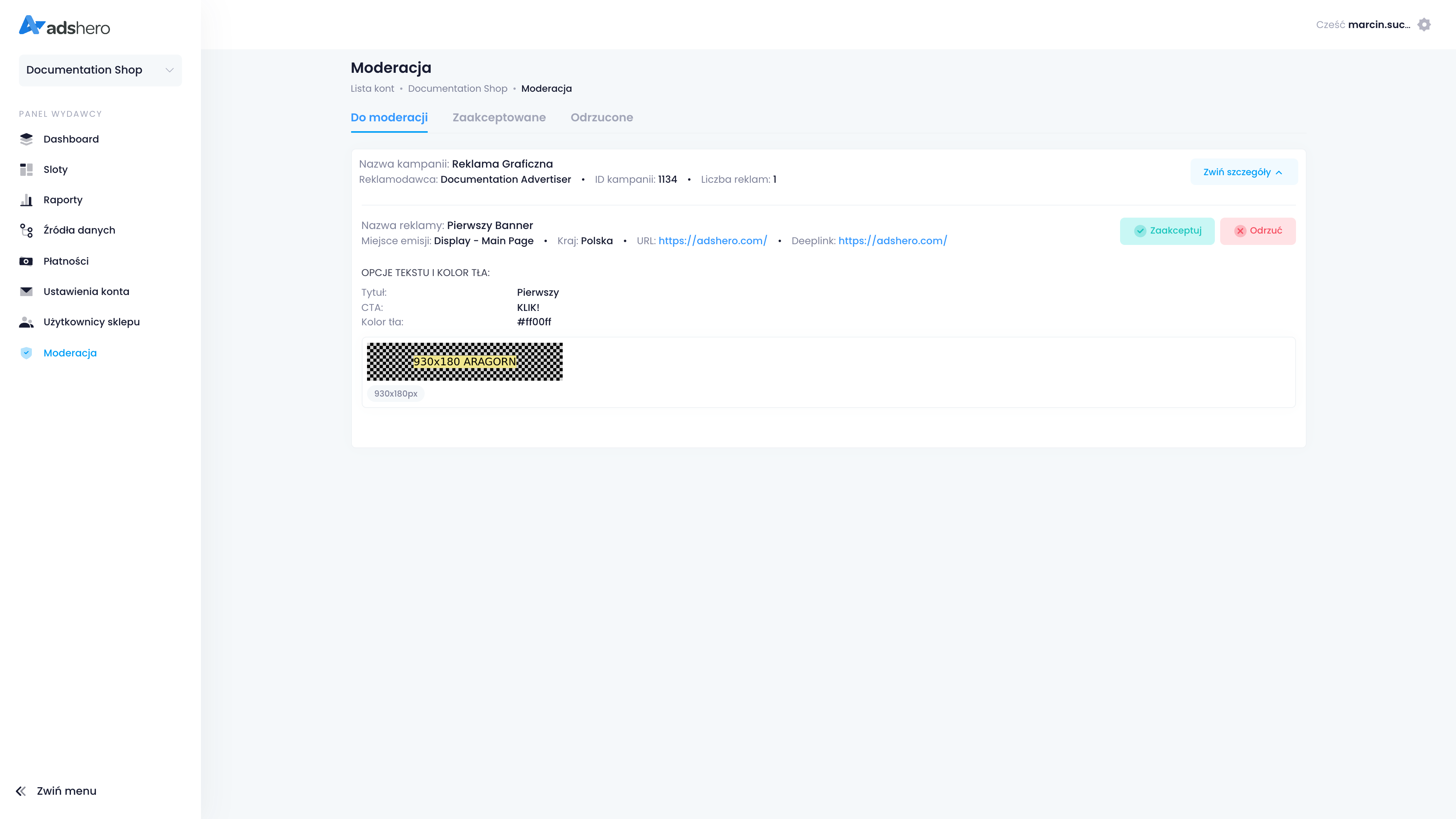
Switch to the publisher account. Click the dropdown on the left and select “Shop Account.” Find your shop on the list and go to the “Moderation” tab in the left panel. The ad from the created campaign awaits moderation — expanding it, we click “Accept” (in reality, check if the ad meets the shop’s standards!):
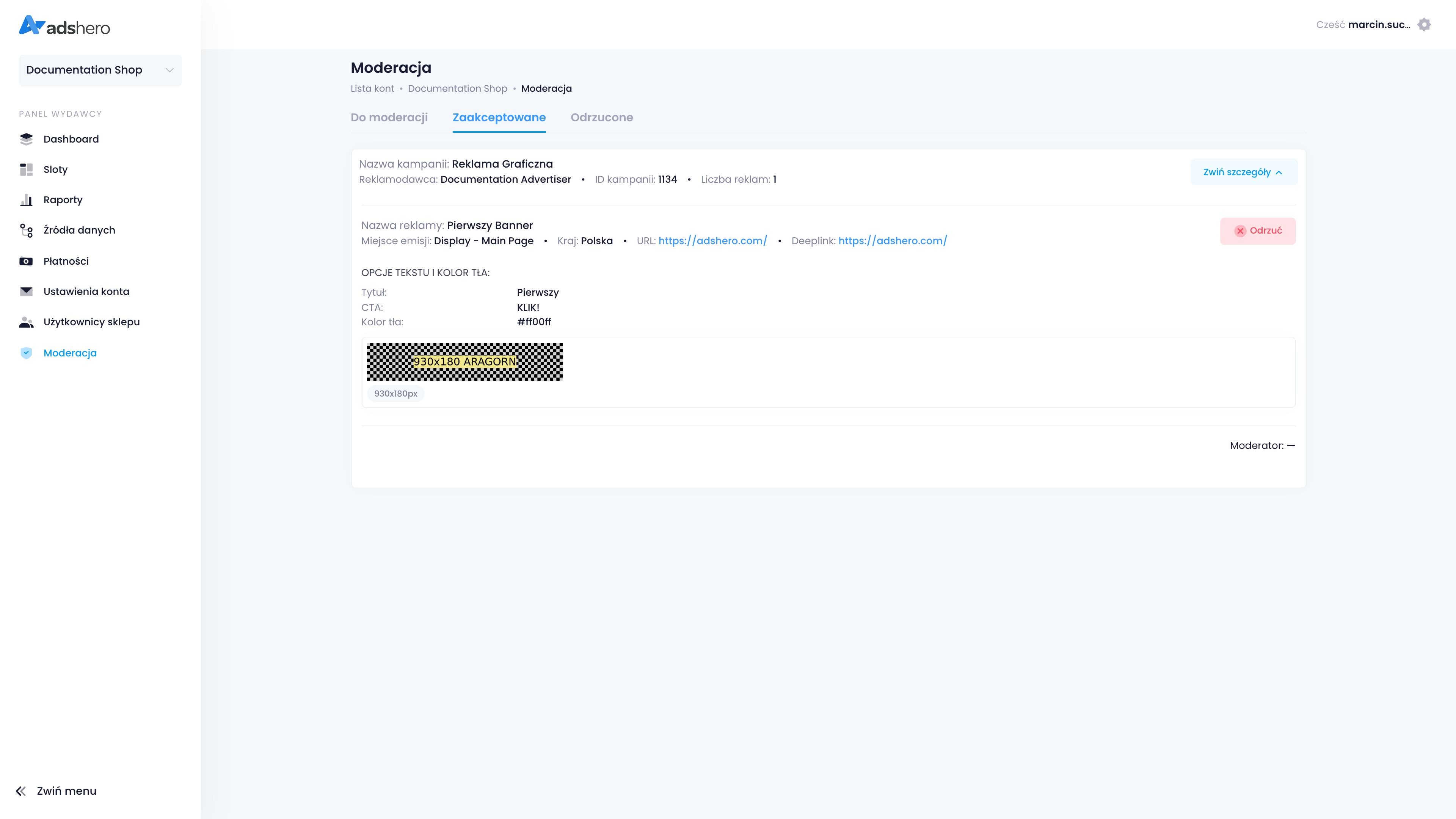
The ad will disappear from the “To Moderate” list and appear in the “Accepted” list:
Test emission
Emission endpoint:
POST https://dispatcher.ahevds.com/v1/banner/dsa/raw/batch HTTP/2
Content-Type: application/json
cid: {cid}
uid: {uid}

{
  "targeting": [
    {
      "slotHash": "{slotHash}",
      "adCount": 1
    }
  ]
}slotHashis the ad unit identifier available in the publisher’s panel on the list of ad units (menu “slots”).adCount(in the example, value1) is the maximum number of ads to be returned.
Below is an additional example query for emission. More examples and a detailed description of the available parameters can be found in the Emission API documentation.
POST https://dispatcher.ahevds.com/v1/banner/dsa/raw/batch HTTP/2
Content-Type: application/json

{
  "targeting": [
    {
      "slotHash": "8cc4ba26-bb96-46f1-975c-a6a21243bb05",
      "adCount": 1
    }
  ]
}HTTP/1.1 200
Content-Type: application/json;charset=utf-8
{
"data": [
{
"slotHash": "8cc4ba26-bb96-46f1-975c-a6a21243bb05",
"ads": [
{
"bannerId": "4732",
"bannerUrl": "https://adshero.com/",
"mobileDeepLink": "https://adshero.com/",
"showId": "eyJhbGciOiJSUzUxMiJ9.eyJhZHVuaXQiOiJhRDhJQTFuVHphaUk5RFphdkpmMnllNkdBZlJTenJpZlZyS3AveEdjVS83NFNwR2tsWTdZai9HYzJIQ2hZYzhUNFRXcFppdFNtWTZELzFQTEVKc21TanMvbGZubUNjZWhYSjMvczIwdG1NQ2NqS3BpS2NFa1kzZVN3VXVKbytsbThpY2dUMzdjb0ZZeCtqV3VEcC9aa0lYWnhOMkJvY3lzVThmN2NrL09FY2hWVGtPU0QrTlZSY28yRXVwUTM4QlhnWUJhR2ZRV1hOeFpqdzdvMGdEUkRaMmpTa1FmKzVnT011SEdGbzJwZ0FCTG1aTklFNWlTNFZCbUZRenFDVXVCRkNteE5PQzZTTDdXWGplVVFqT3VwVlhUWnVZTzVsQ0dYcU1Sb0JyUCtaaWljSThHd2NTbFZPSnB5UVRMb1N2eU80VDY2Y3p5blpFWUs1eHJDRGtCZWhDSk1zMkpYbDJzQ1ZMSVlOQzRLMFg1MktTMGRSMXdLMlJZQnVyZGVKM28waldJQ0QvN3ZEaFVuemNnODJCNTJhRjYwZEpkbVQ1cEJ1RldoWlpzcldoT21lQWZTTUxiU0RKWnNZd1ZQdCt0SjVwWGhoclUxYldIaElXckVTd1FTZEs3T3Exd2NROVFiMXJQL1dMR1BtMUpTa2hFQXlUeC9KZlhJK3RXY05JdXlsd1AyYjZ6ZHhFOXB2UDJESDFUT0RnRFBIRzg0ajBMQ1owTkVFT01VbGxjenlzWDNRanJSaVp3OHM4QTBTSEphL1lSV1Q4M3ZlVWdBa2U4dEU2bnpTTXRrMlFGMVh6SzZXbUFtSzNOSFhiNjMzRFdGd3VlcmpKUEVYcmFsOGhYZEJ3L0FlcTU4N2k1cHJOVXlKRG52Zz09IiwidHlwZSI6IkJBTk5FUiJ9.U4VJZH2YvrM50tTLrW5wldAaFgVN12104TLH9L0eRnzLluFkQYyL_WgFvQ90iCvKEHr97W_DrhhJj5J34n2mH_cIMDqxYSIiMxejeHfmx7Rn5xYZjlfrfFjl4eLGorC9jf_ayUvXo-2T7BzZeuwIDlAi3q-BL6nuwShIQ6hg8-vynq5l0QrvCjrMLNqsvUh4bt0IVGDEleVcMByfPw7bo9ZhS0qFwBxTTNKsf6mFuC4pOJrNh6w-vGIPKewfQpkq26jANhjlNIWkAXYCItCza3uVjvCbxjg_9M1PwVofsmxcj1GJmDQN0bNbRoQcxZeOBV1NcuRxdihFu_JV2_bw7w",
"requestId": "|b1k7w9d6qwCBkAVFANzxRoQWyxYXpX5KyylO.7XZsrc_",
"slotHash": "8cc4ba26-bb96-46f1-975c-a6a21243bb05",
"shopId": "cf196098-c935-4ac4-83f2-aece5185602a",
"lang": null,
"currency": null,
"autoPromo": false,
"bannerLogoUrl": null,
"bannerImageUrl": null,
"adFormatId": "0f76d848-0977-422a-8f12-251b5b5c3ca7",
"bannerProducts": null,
"images": [
{
"width": 930,
"height": 180,
"imageId": "1b56a006-f3be-4684-9008-e41e41aab41d.png",
"imageUrl": "https://prd-cdn-images-prx.ahevds.com/1b56a006-f3be-4684-9008-e41e41aab41d.png"
}
],
"textFields": [
{
"type": "TITLE",
"value": "First"
},
{
"type": "CTA",
"value": "CLICK!"
},
{
"type": "BG_COLOR",
"value": "#ff00ff"
}
]
}
]
}
],
"meta": null,
"clientId": "v2.937064567.1728059604"
}It can be seen that the format ID was returned (based on which the frontend knows how to render the ad) and all the parameters required by the format (image, URL, and text fields).
A detailed description of the emission API can be found here.
Sending Events
For complete integration with the AdsHero system, we need feedback on user interactions with ads. We accept the following events (in the case of display ads, the ad is a single banner returned in an emission):
- Ad view — required
- Ad click — required
- Adding product to wishlist
- Adding product to cart
- Purchase — required
A detailed description of sending events can be found here.