Targeting
Display advertising in Adshero allows you to use targeting to precisely select users and contexts in which the advertisement will be visible.
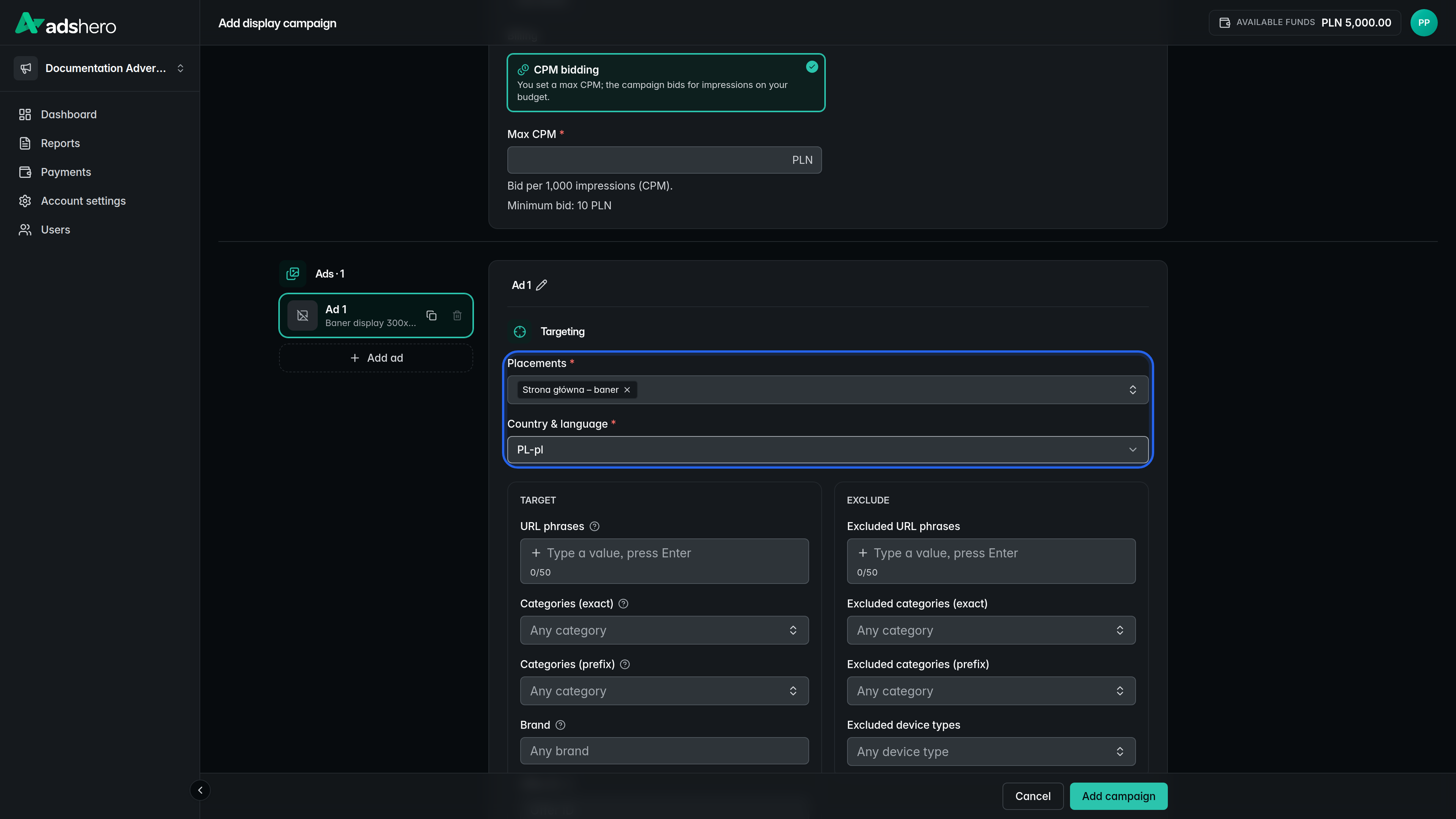
In the Adshero panel, configuring display ad targeting begins with selecting the target location, language, and country for which we want to display the ad:
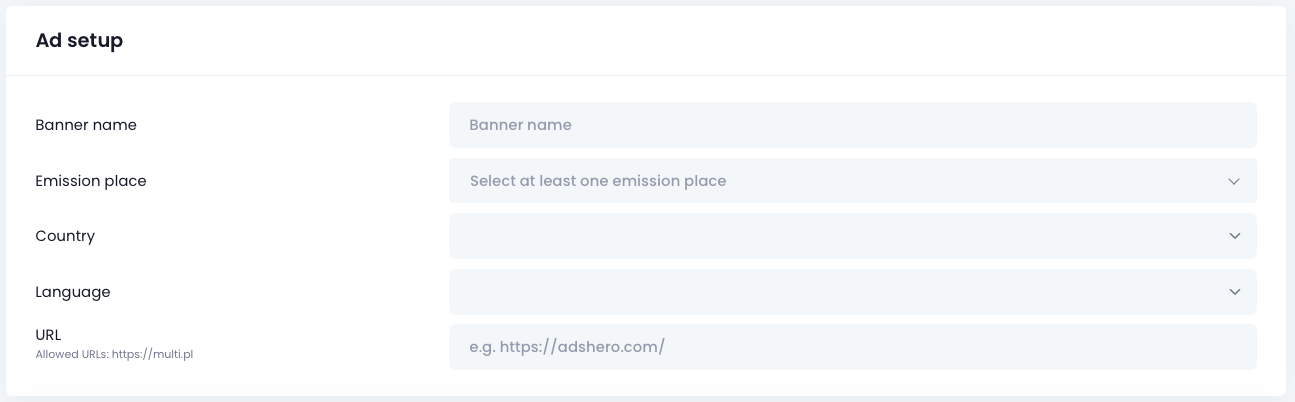
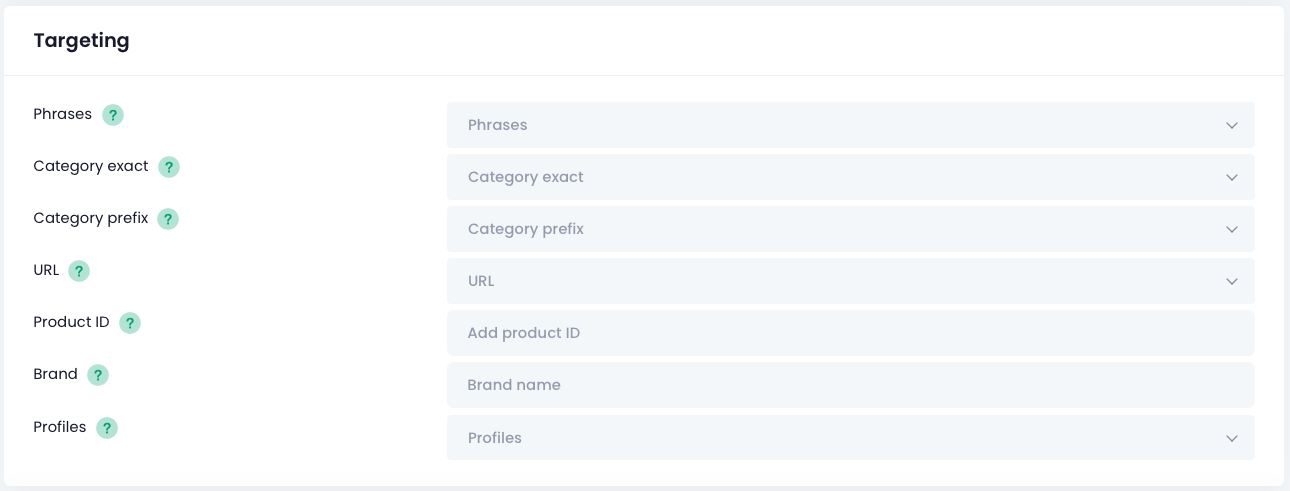
After selecting the appropriate target location, the ability to set additional parameters will appear. You can target by URL phrases, category (exact or prefix), brand, offer ID, profiles, and device type. Which fields appear depends on the targeting dimensions enabled on the ad unit. Targeting parameters are described below.
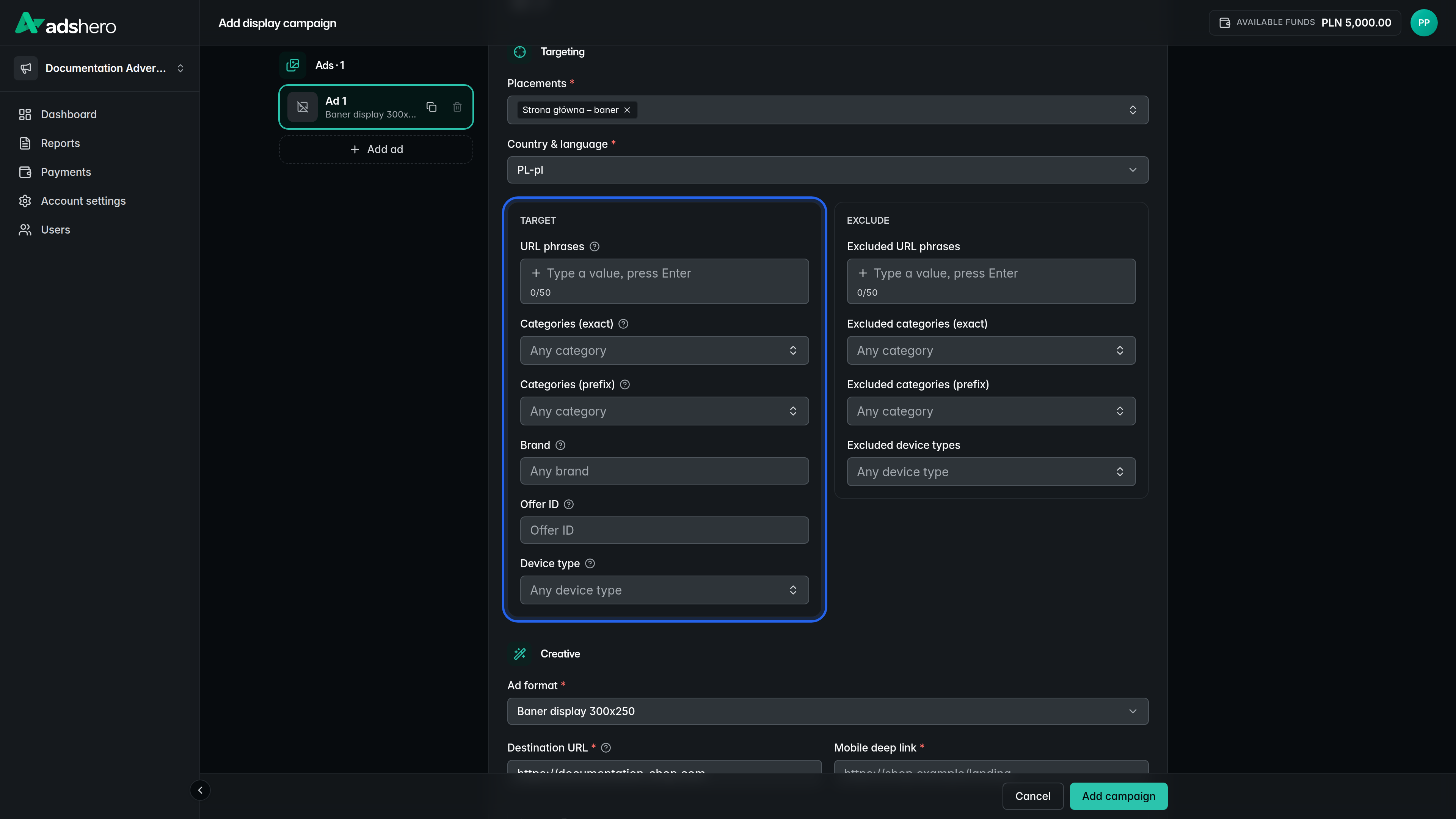
The next section is negative targeting - using the same parameters as above (except brand and offer ID). Negative targeting works on the principle of exclusion - when we fill in a selected field, ads will be displayed only in cases where the parameter from the emission request differs from the value we have excluded.
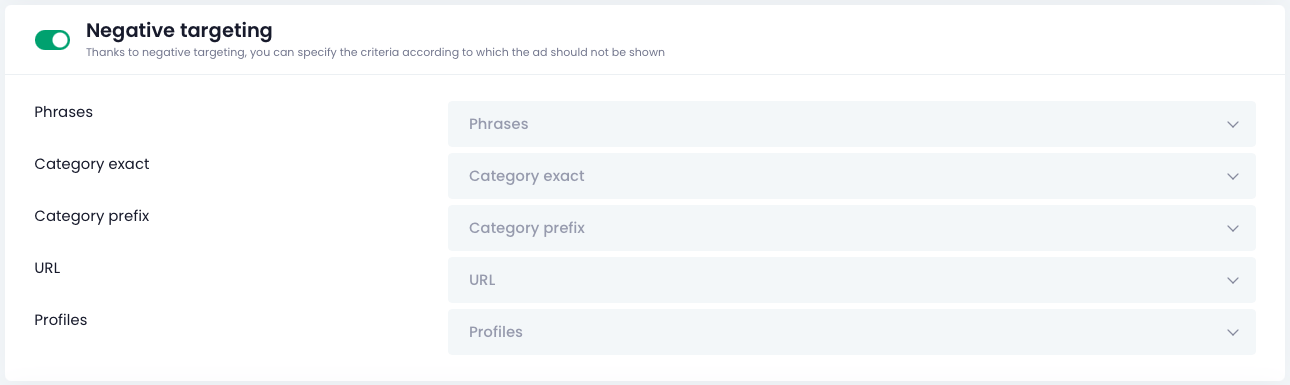
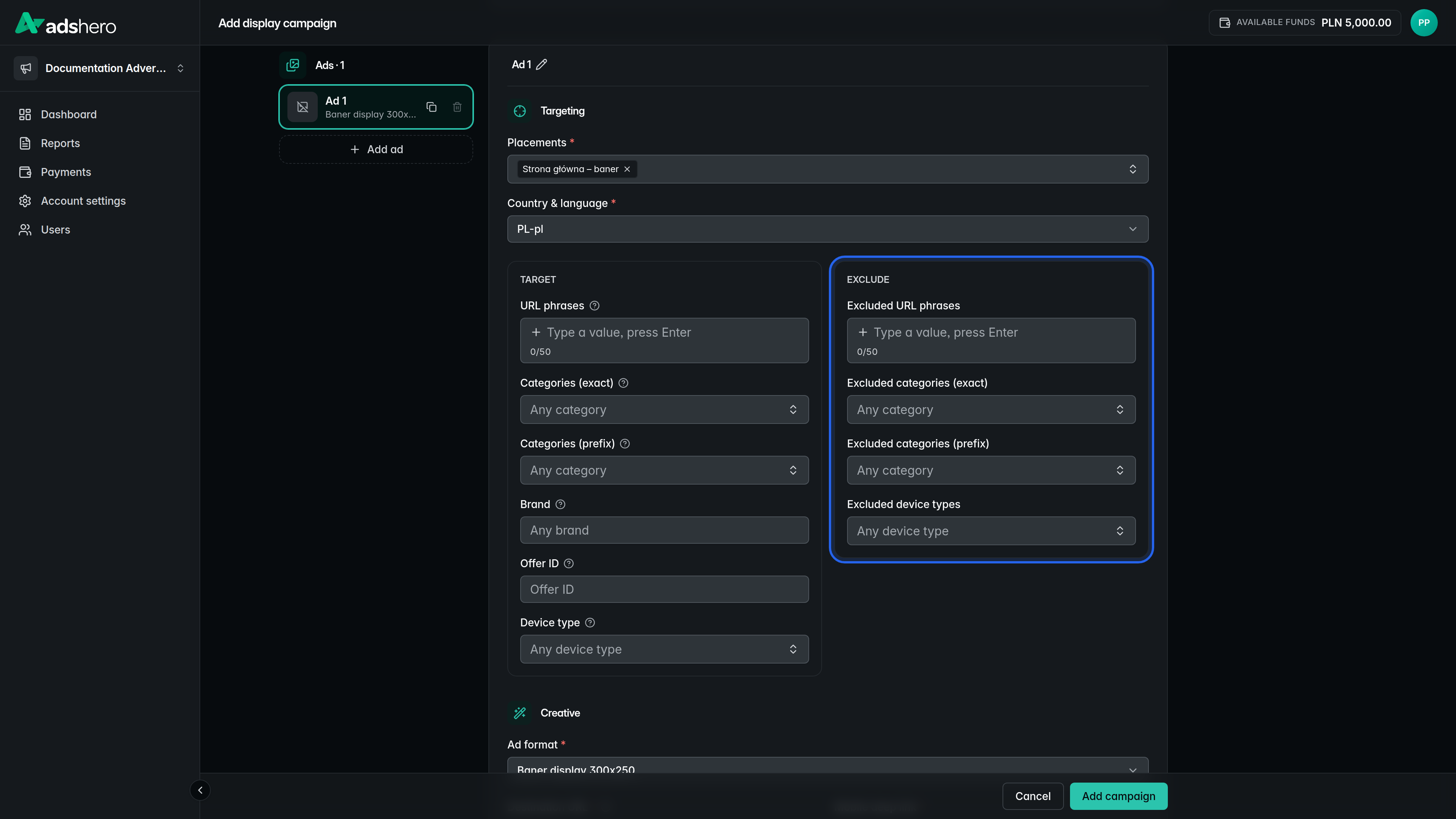
Below is a detailed description of the fields available for selection:
- Placements Places where the ad will be displayed
- Country & language The market the ad will be displayed in (selectable based on the target location configuration)
- URL phrases Your ad will display only on pages containing the phrases you enter in this field. A single matching fragment in the URL is enough for your ad to appear.
For example: If your store runs special marketing campaigns or has thematic landing pages with URLs like: https://store-domain.com/promotion/short-dates or https://store-domain.com/action/black-week
You can enter short-dates, /action/, or black-week in this field to target those pages. - Categories (exact) Your ad will only appear in locations that exactly match the selected category or category path. Use
>or/to separate different category levels.
For example: If you enter “women > sneakers”, your ad will display in the “women > sneakers” category but not in the “women” category or its subcategories like “women > sneakers > low sneakers”.
To show your ad everywhere, leave this field blank. You can select Exact category or Prefix category – one is enough. - Categories (prefix) Your ad will appear in locations that start with the selected category, including its subcategories. Use
>or/to separate different category levels.
For example: If you enter “women > sneakers”, your ad will display in the “women > sneakers” category and its subcategories like “women > sneakers > low sneakers”, but not in the “women” category.
To show your ad everywhere, leave this field blank. You can select Exact category or Prefix category – one is enough.
When a user provides both an exact category and a prefix category, both conditions will be considered simultaneously during ad display, which means that the ad will be shown in all locations that meet at least one of these conditions.
- Brand Your ad will display if the brand entered in targeting matches the brand selected by the user in the store.
- Offer ID Your ad will only appear on the page of the specified offer.
- Profiles Define the group of users who will see your ad. The field appears only when the shop has profiles configured on their side — their list is then available in the panel during selection.
- Device type Restrict the ad to specific device types. Available values:
DESKTOP_WEB,TABLET,MOBILE_WEB,MOBILE_APP. You can select one or more values for positive targeting (ad shown only on those devices) and/or for negative targeting (ad excluded on those devices). If neither list is set, the ad is eligible for all device types. The device value on the emission side is sent as thedeviceTypequery parameter — if omitted, device-type targeting is not applied at serve time (backwards-compat).