Whitelabel
Within the whitelabel framework, AdsHero allows the advertiser’s panel to be shared on the shop’s domain and consistently with its styling (logo and colors). A typical application is marketplaces where many sellers meet on one platform: the platform then shares the AdsHero panel on its domain, and sellers can advertise their products within the platform.
By default, we configure whitelabel so that advertisers/sellers within the whitelabel do not see other shops and that advertisers outside the whitelabel do not have access to the shop. In short: whitelabel is isolated from the rest of the AdsHero network.
The implementation of whitelabel follows these steps:
Choosing a domain for the panel and email dispatch
This is the domain where the sellers will go to access the panel. We suggest a domain without “ads” in the name, as such domains are often blocked by ad blockers and cause problems for sellers—it is not a requirement, though. A good choice is a subdomain like partners.<marketplace>.pl. We also offer subdomains in the adshero.com domain—this is the simplest solution in terms of configuration since everything happens on our side.
Additionally, a domain is necessary from which emails will be sent to sellers with invitations to the panel, password resets, etc. This can be the same domain as for the panel.
After choosing the domain, please contact us—we will then provide detailed domain configuration instructions and configure the whitelabel on our side.
Ad delivery integration
Simultaneously with the first step, you can start integrating with the serving of sponsored products and display. We recommend integrating on a test account that we will prepare for you, and then switching to a production account linked to the whitelabel.
We provide access to the production account even before the entire configuration is ready to allow for earlier uploading of product feeds and configuring ad units.
Sending invitations to advertisers
After logging into the panel and accessing the publisher account, go to the “Advertisers” tab (it is visible only after the whitelabel configuration is set):
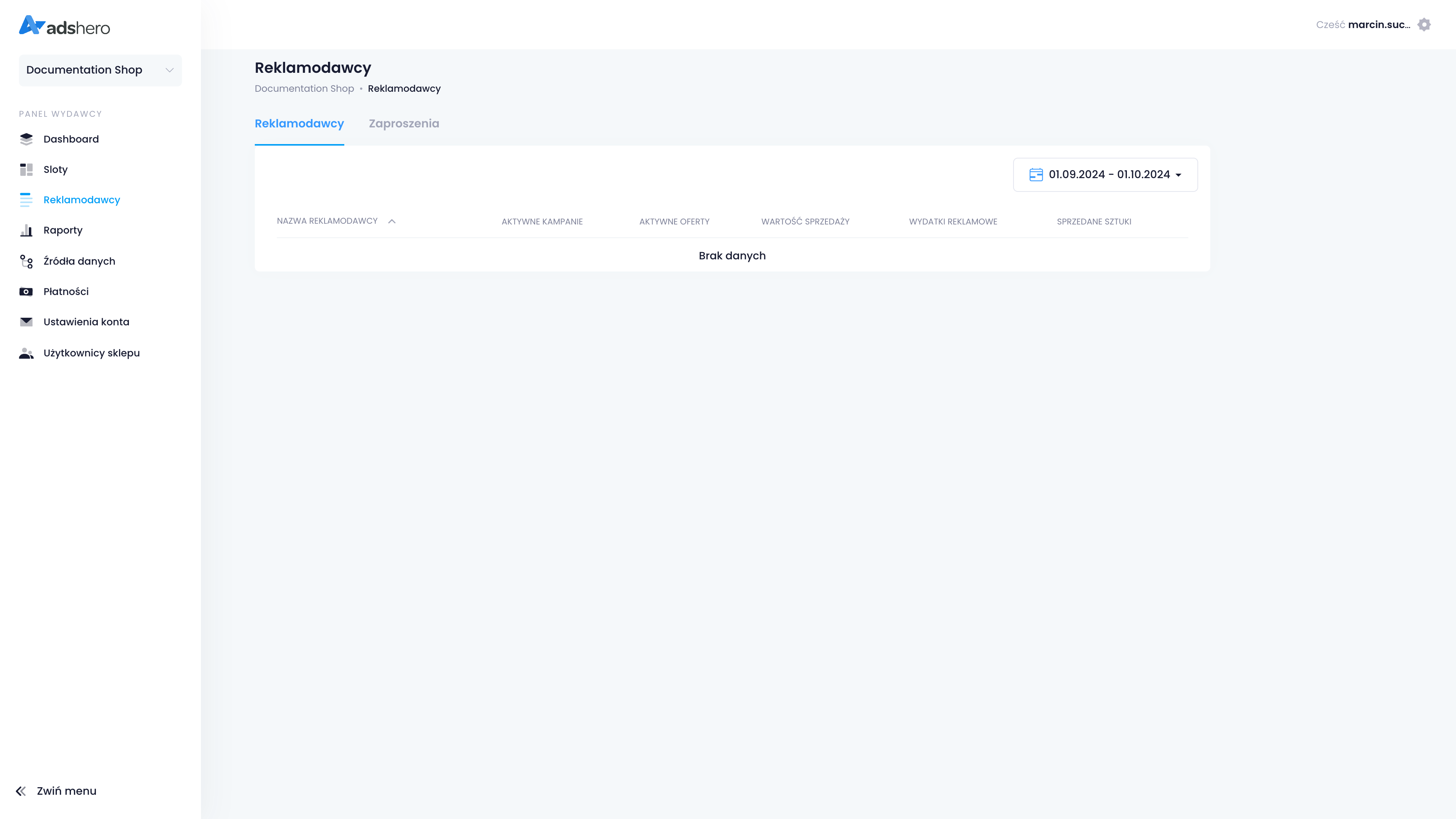
Then go to the “Invitations” tab and click “Add invitation”:
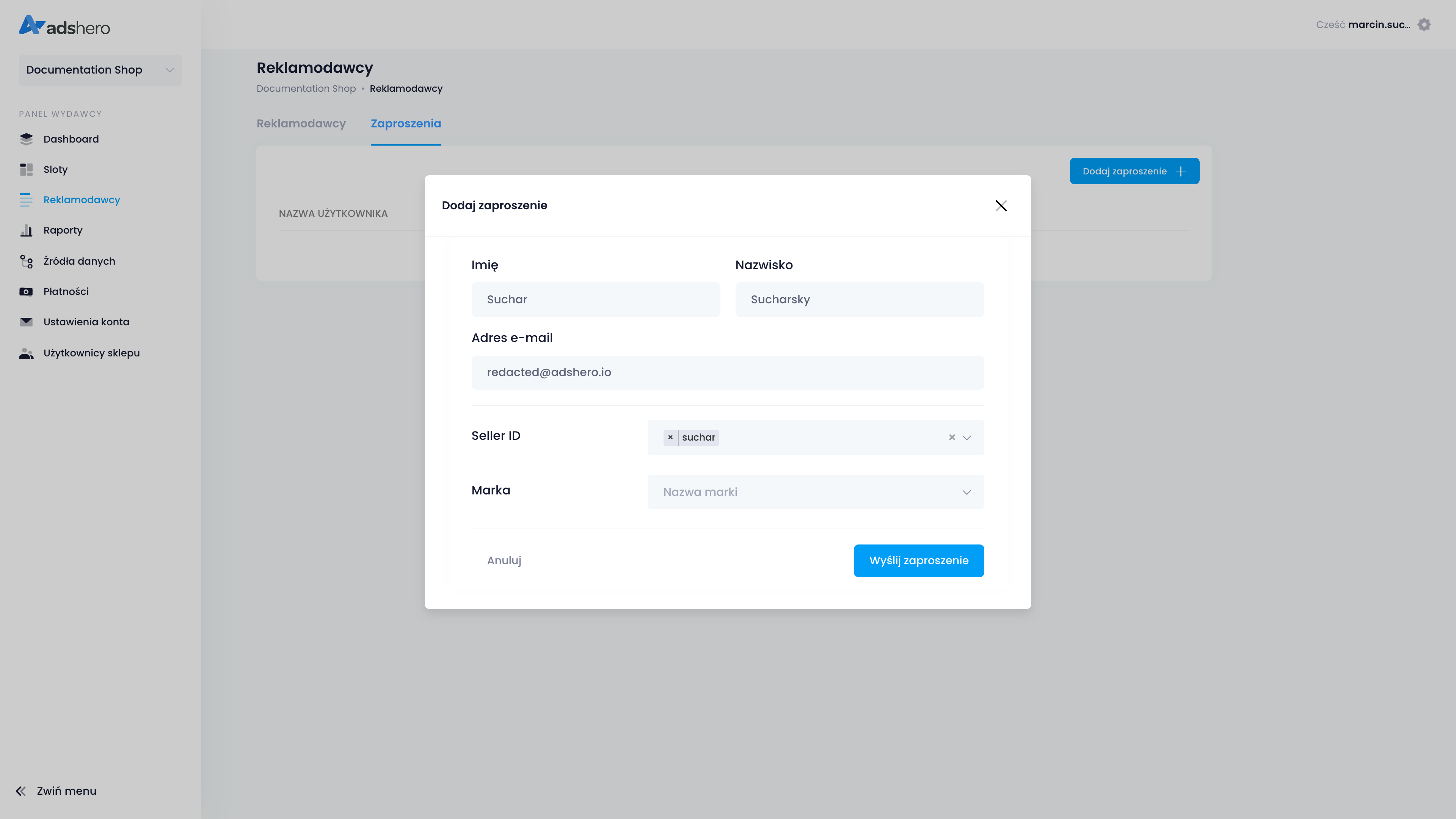
Key elements to fill out:
- Email Address — the invitation to create an account will be sent to this address. If incorrect, the seller will not make use of Ads.
- Seller ID — The seller’s identifier from the feed (
external_seller_id). It can be empty, but then the “Brand” field must be filled. Defines the products available for the seller to advertise. - Brand — The brand identifier from the feed (
brand). It can be empty, but then the “Seller ID” field must be filled. Defines the products available for the seller to advertise.